Billing and AI credits
This section covers settings managed by your organization’s admins.
Manage your Subscriptions
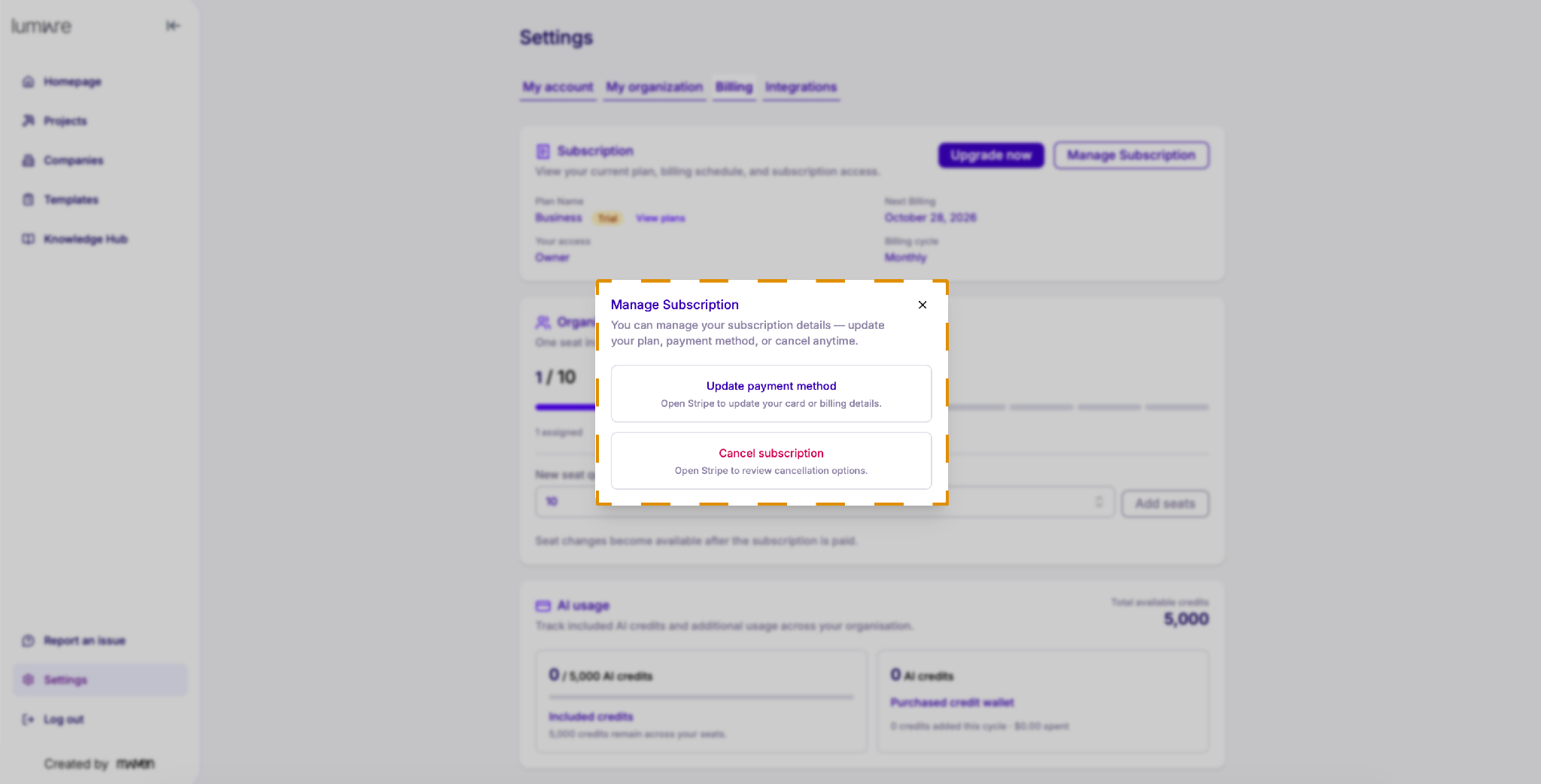
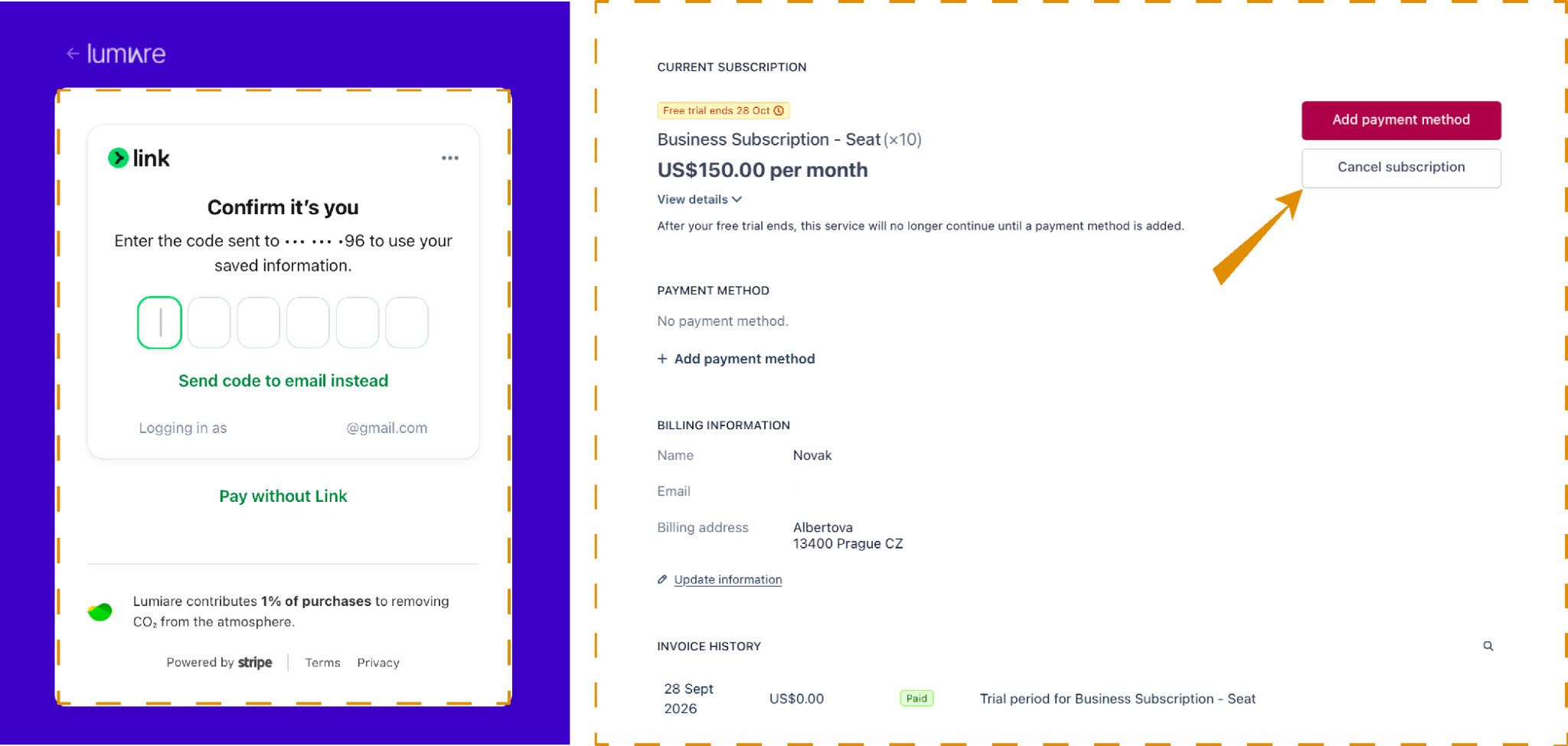
Update payment method: Opens Stripe so you can update your card or billing details and keep using Lumiare without interruption.
Cancel subscription: Opens Stripe so you can review your cancellation options.
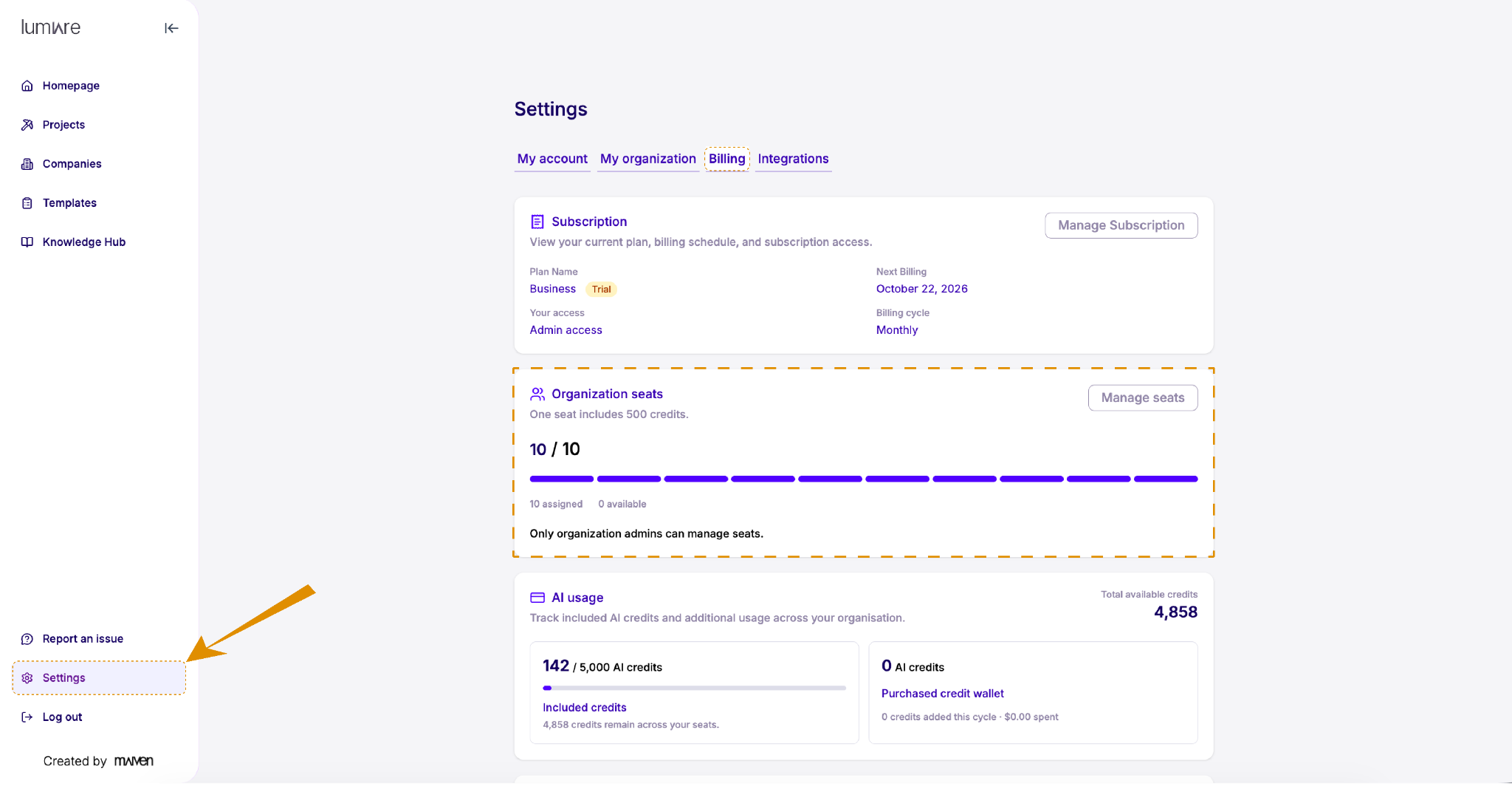
Organisation seats
See how many seats your organization has and how many are already assigned. Each seat includes 500 AI credits. To add or remove seats, click Manage seats. Only organization admins can manage seats, so if the button isn't available to you, contact your organization's admin.
Track and control AI credits
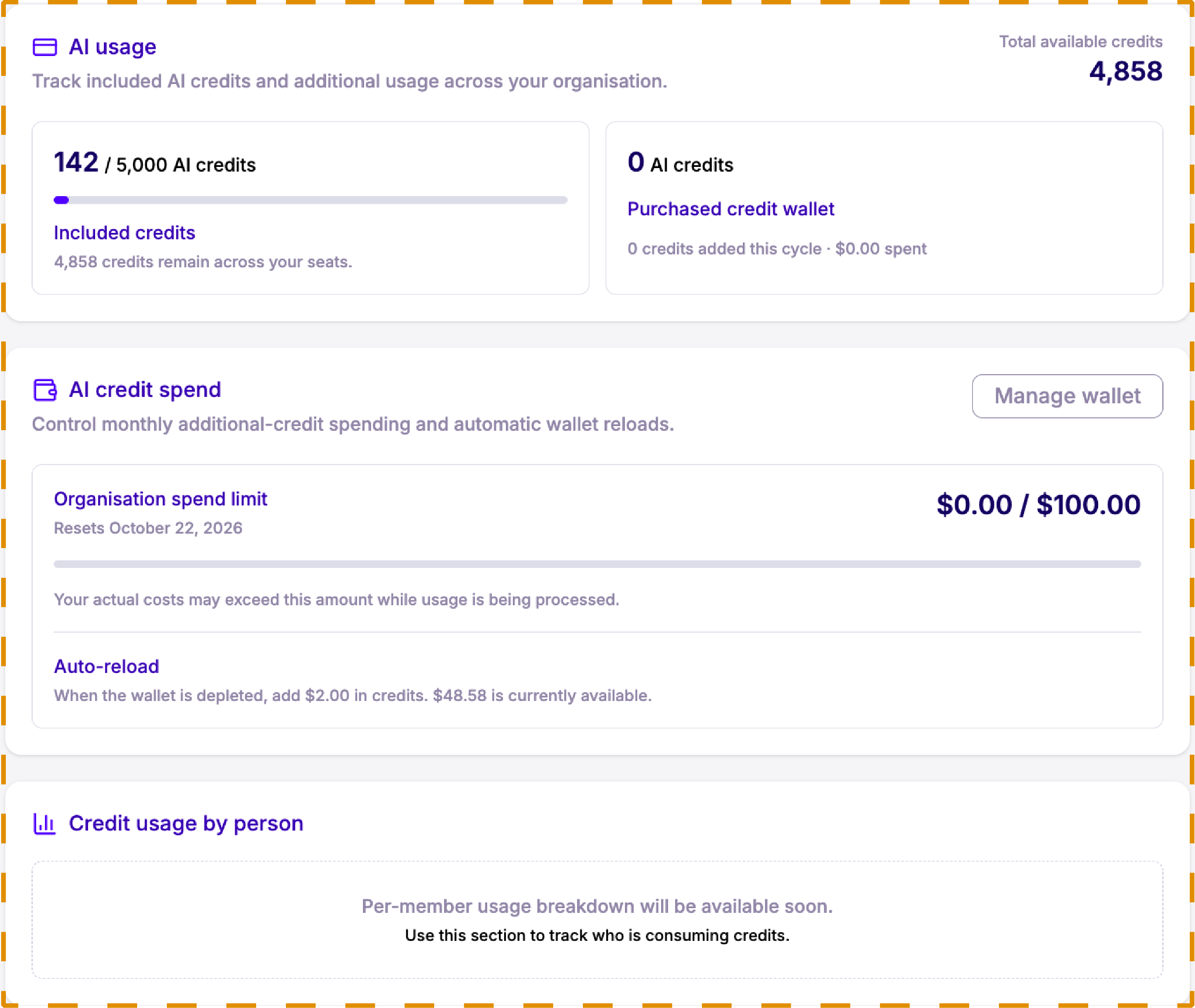
At the bottom of the Billing tab, see how your organization uses AI credits and set limits on additional spending.
AI usage: See how many credits your organization has used and how many are still available:
Included credits: The credits that come with your seats, shared across your whole organization.
Purchased credit wallet: Any additional credits your organization has bought, along with how much has been spent this billing cycle.
AI credit spend: Once your included credits run out, additional usage is paid from your credit wallet. To keep costs under control, you can set:
Organisation spend limit: The maximum amount your organization can spend on additional credits each month. The limit resets at the start of each billing cycle. Keep in mind that actual costs may briefly exceed the limit while usage is being processed.
Auto-reload: The amount of credits automatically added when your wallet runs out, so your team can keep working without interruption.
To change these settings, click Manage wallet.
Credit usage by person: A breakdown of how many credits each team member uses will be available here soon.