Project workspace and datapoints
Your project workspace
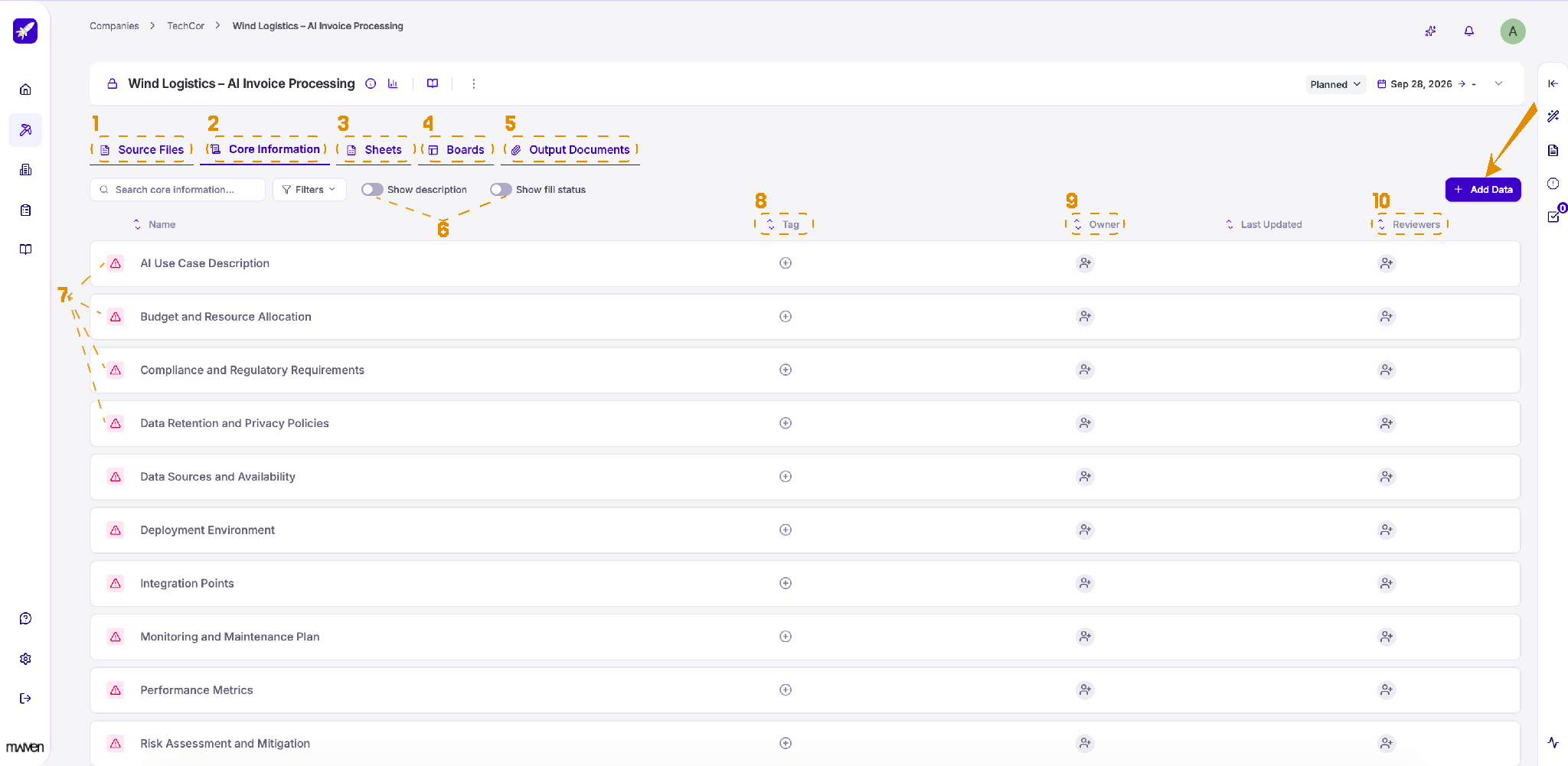
Once your project is created, this is where you'll work with it:
-
Source Files: Upload and manage the files your project is built on.
-
Core Information: View all the project's datapoints in one place.
-
Sheets: Open the sheets included in your project template.
-
Boards: Organize and track the project's work visually.
-
Output Documents: Generate and access the documents created from your project's data.
-
Show description / Show fill status: Turn these on to see each datapoint's description and how complete it is.
-
Datapoint (Core Information): Structured heart of a project. A datapoint is one defined piece of knowledge the project needs.
-
Tag: Add tags to group and filter datapoints.
-
Owner: Assign the person responsible for a datapoint.
-
Reviewers: Add the people who should review and approve it.
To add new information to the project, click + Add Data in the top-right corner.
Review a Datapoint
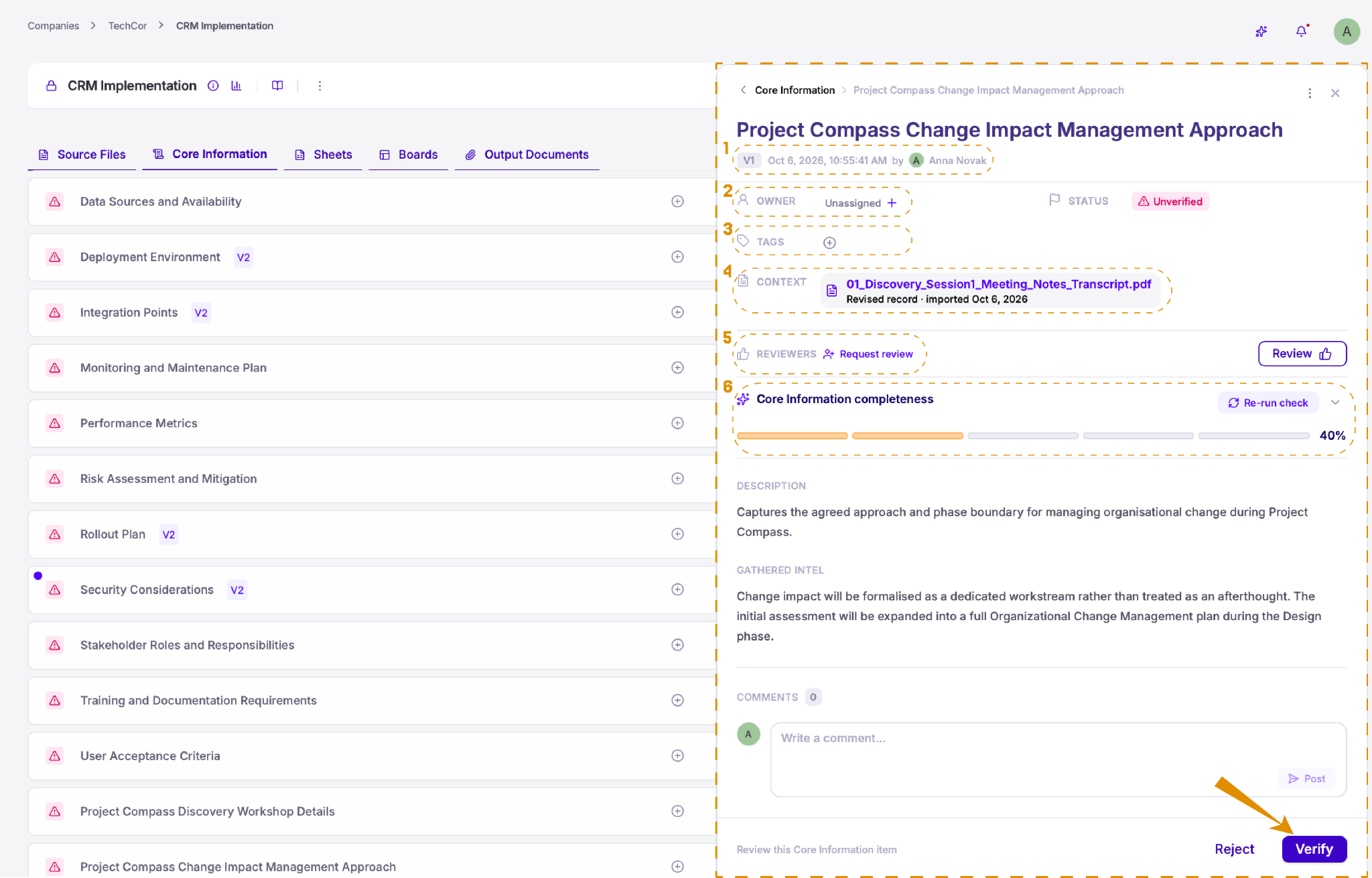
Click any datapoint in the Core Information tab to open its details.
-
Version: The current version of the datapoint, when it was last updated, and by whom.
-
Owner: The person responsible for this datapoint. Click + to assign a team member. Next to it, you can see the datapoint's status, such as Unverified.
-
Tags: Click + to add tags and group related datapoints.
-
Context: The source file the information comes from. Click it to check the original document.
-
Reviewers: Click Request review to ask a colleague to check the datapoint, or click Review to give your own feedback.
-
Core Information completeness: Shows how complete the datapoint is. Expand it to see what's still missing, or click Re-run check after adding new information.
Description explains what datapoint should contain.
Gathered intel shows the information Lumiare has collected so far.
Use the Comments section to discuss the datapoint with your team.
Verification: Once you've confirmed the information is correct, click Verify. If it's inaccurate or not relevant, click Reject. Only verified datapoints are treated as approved content, so Vector uses them by default when answering questions or generating documents.