Memos

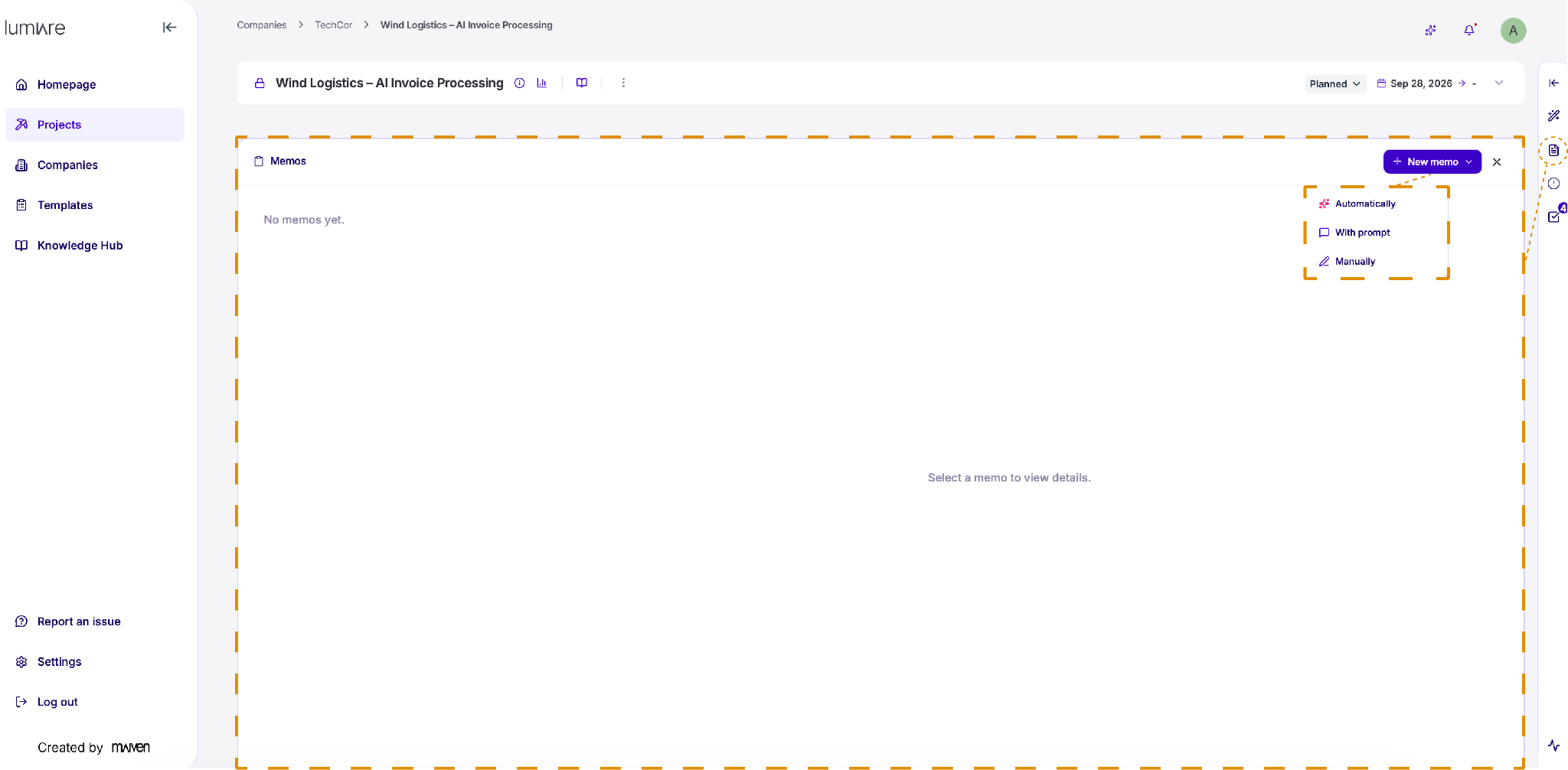
Use Memos to keep project notes, summaries, and updates in one place. Open the panel from the document icon in the right-hand toolbar.
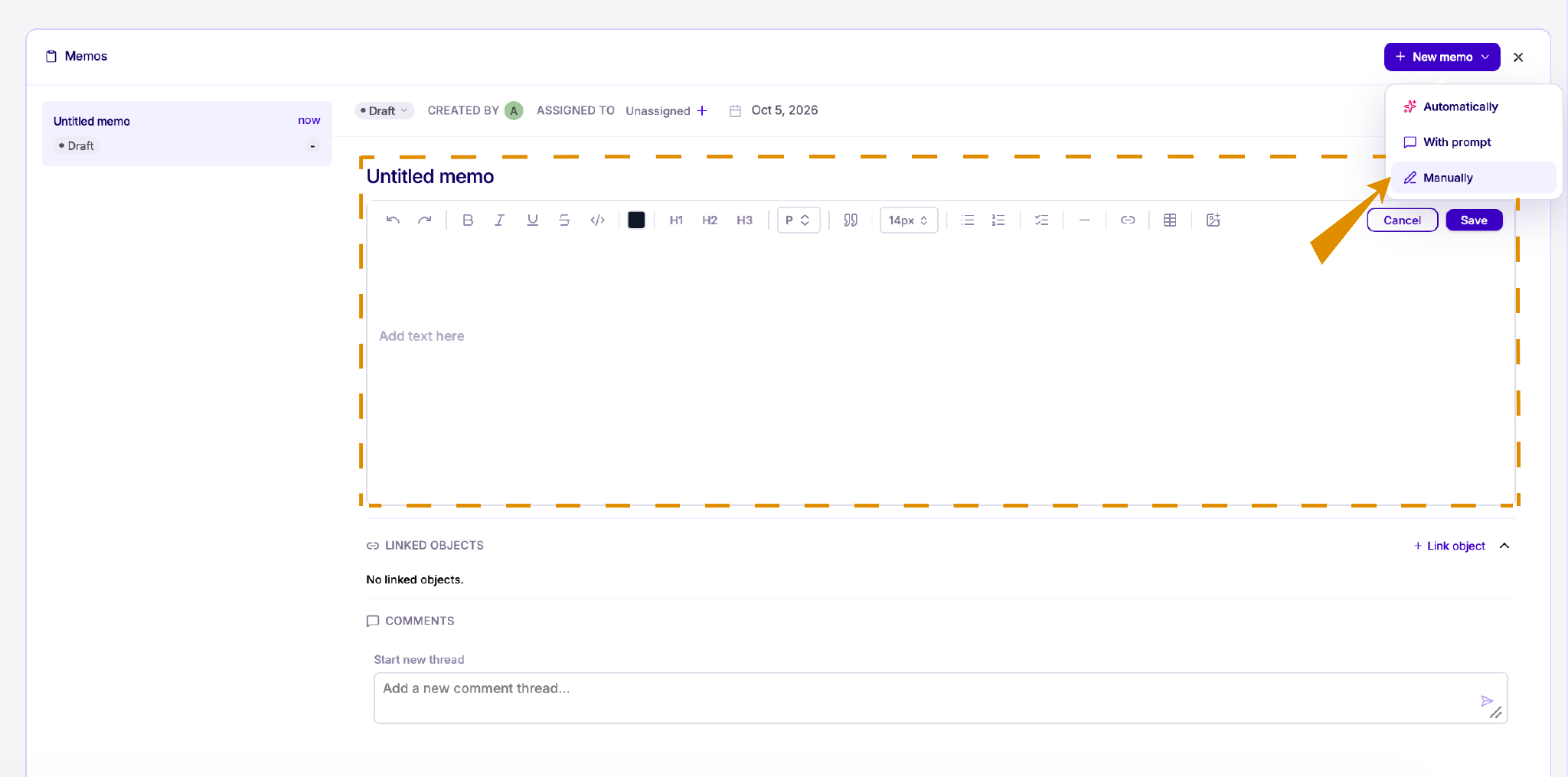
To create one, click + New memo and choose an option from the dropdown.
Automatically: Lumiare generates a memo for you based on your project's information.
With prompt: Describe what the memo should cover, and Lumiare writes it for you.
Manually: Write the memo yourself from scratch.
Manage your memos
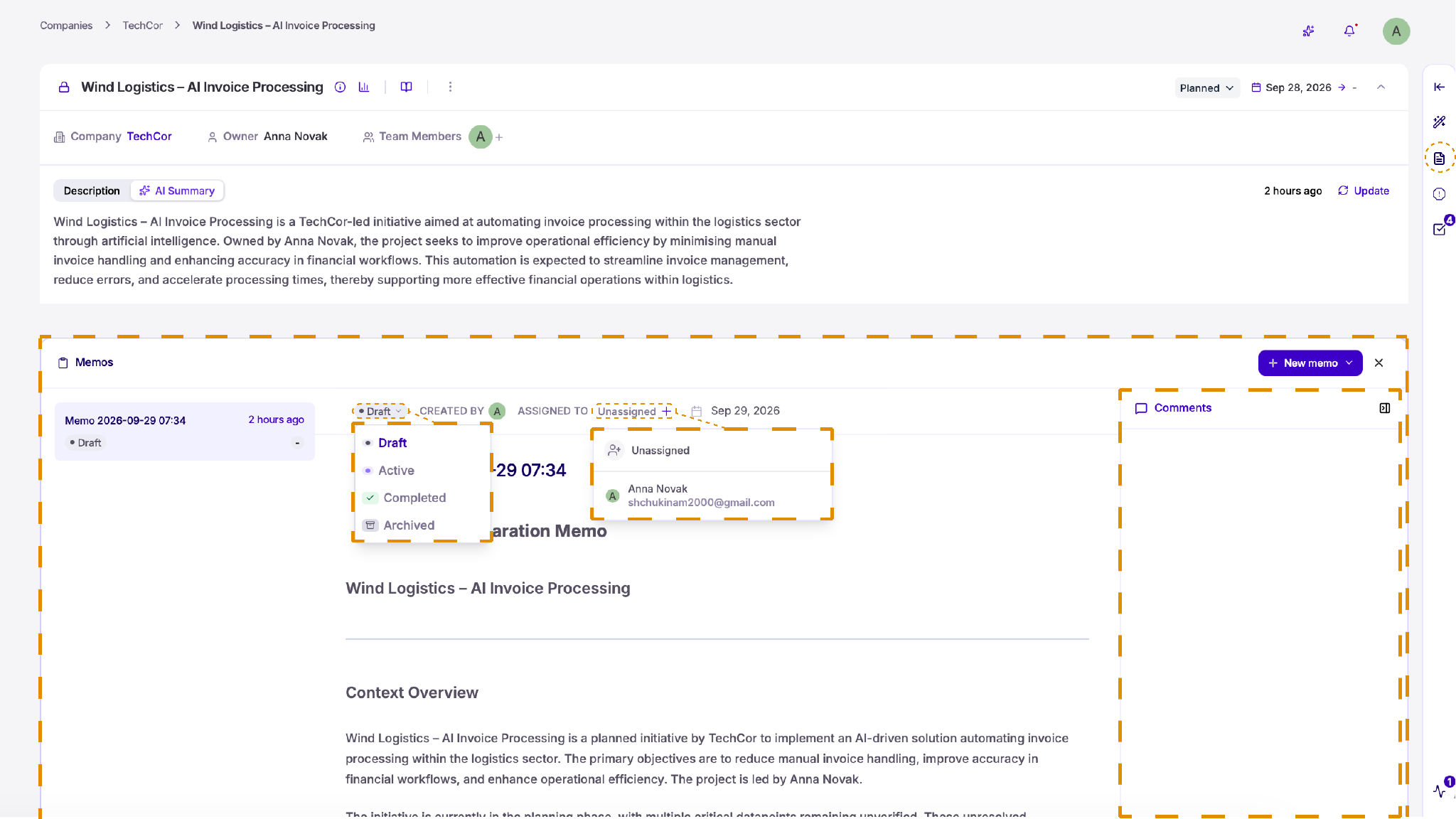
Your memos are listed on the left. Select one to open it and read the full content.
Update the status: Click the status at the top of the memo to change it to Draft, Active, Completed, or Archived.
Assign an owner: Click + next to Unassigned and choose a team member.
Discuss with your team: Use the Comments panel on the right to leave feedback and discuss the memo with your team.
Create a memo with a prompt
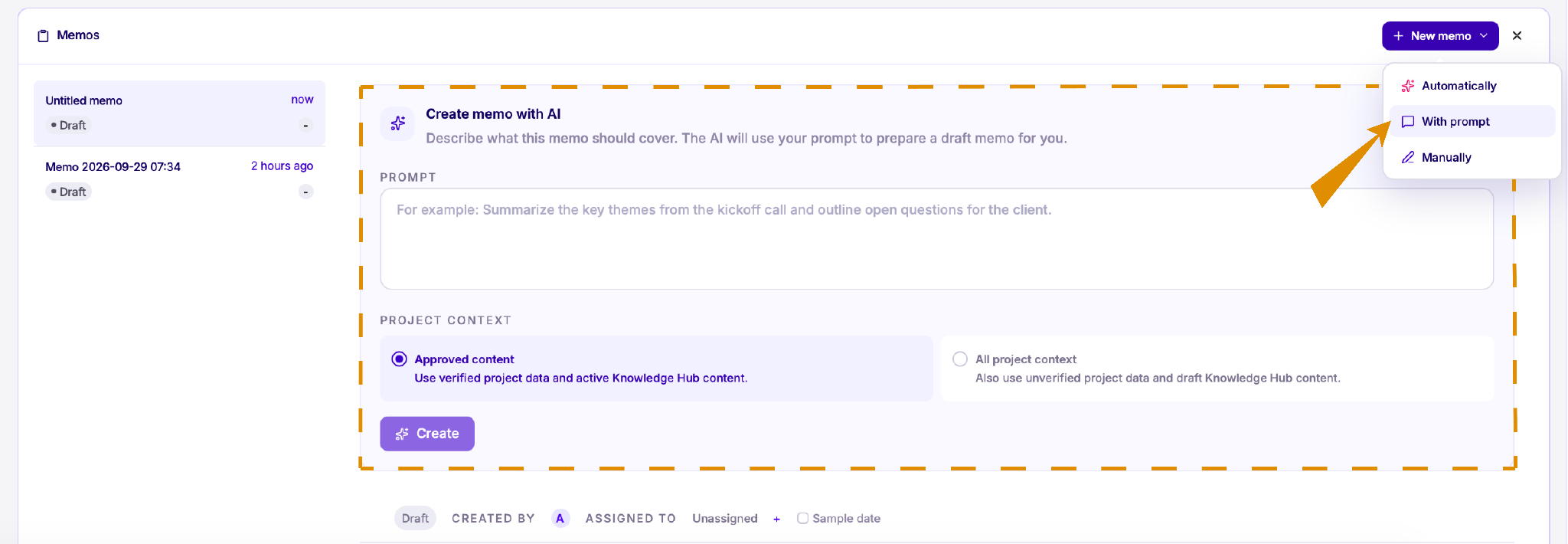
Describe what the memo should cover. Choose which project context the AI should use: only Approved content or All project context.
Approved content: Uses only verified project data and active Knowledge Hub content. Choose this when accuracy matters most.
All project context: Also includes unverified project data and draft Knowledge Hub content, for a broader picture.
Click Create, and Lumiare will prepare a draft memo for you to review and edit.
Write a memo manually
Give it a title, then start typing in the text area below. When you click into the text area, a formatting toolbar appears.
Connect the memo to related datapoints or sheet rows, click + Link object under Linked Objects.
Start a comment thread at the bottom to discuss the memo with your team.
View version history
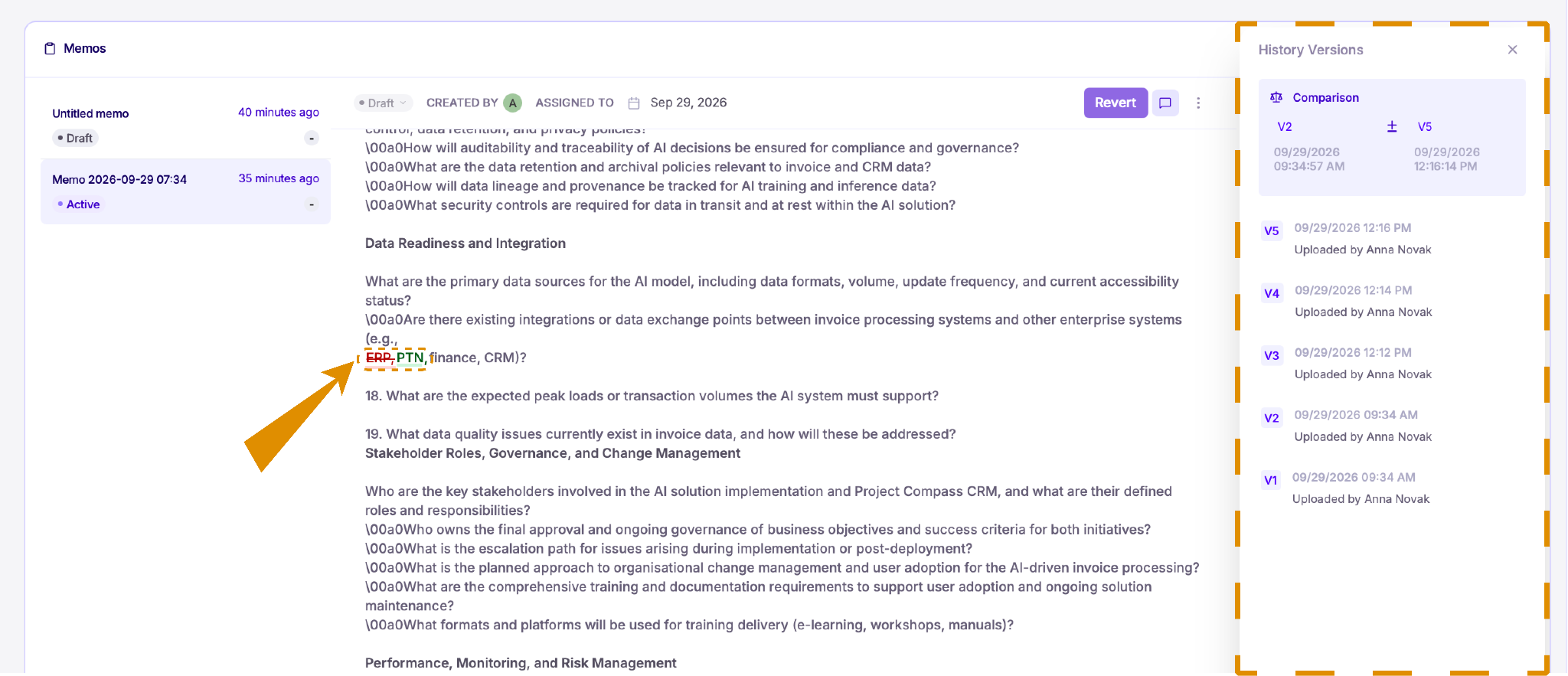
Every time a memo is saved, Lumiare keeps a new version, so you can always see what changed and go back if needed. Open History Versions to see the full list, along with when each version was saved and by whom.
Compare two versions, select them in the Comparison section at the top of the panel. Changes are highlighted directly in the text: removed content is shown in red and crossed out, and added content is shown in green. To restore an earlier version, select it and click Revert.