Create a project

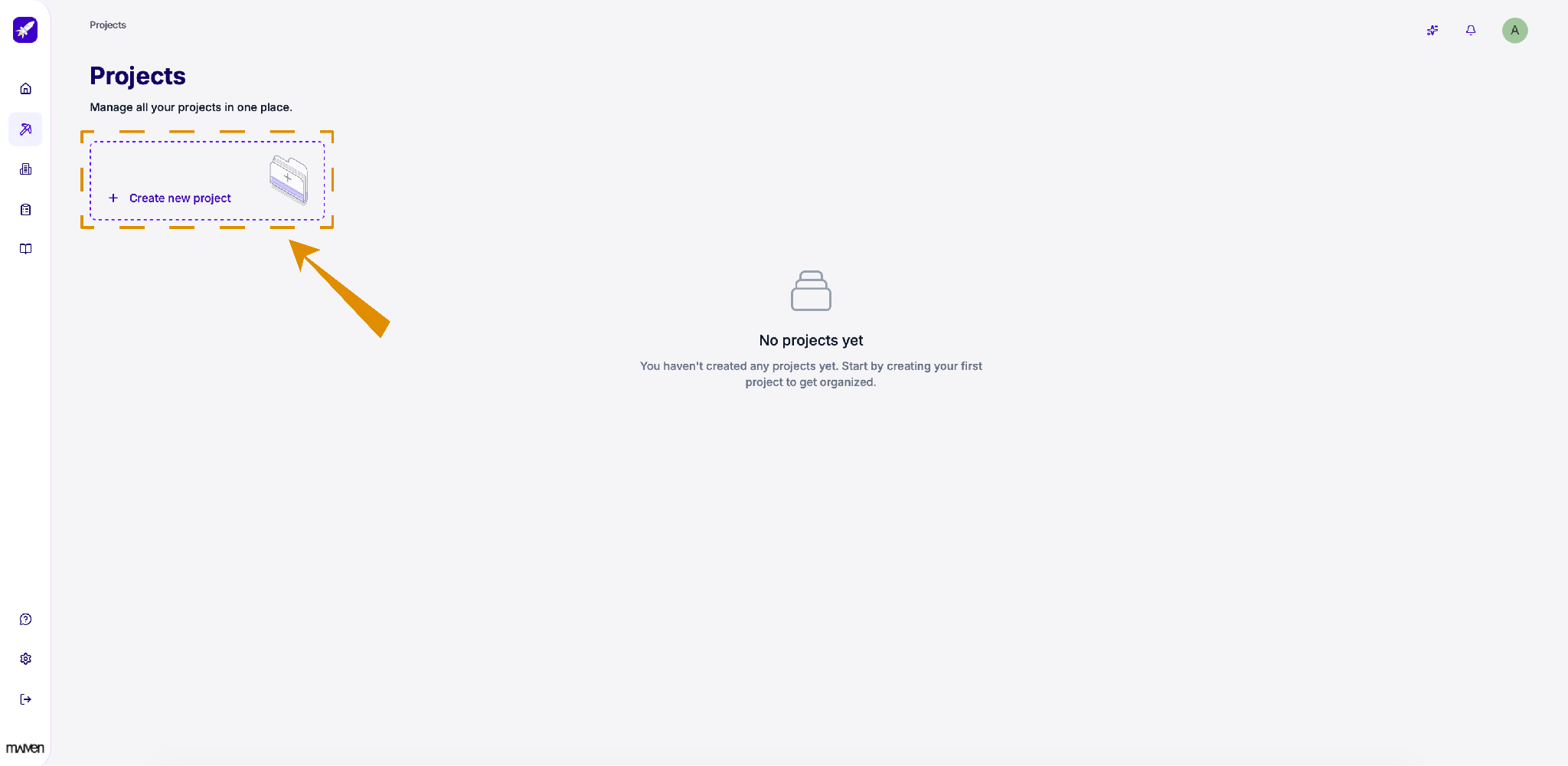
All your projects live on the Projects page. To get started, click + Create new project.
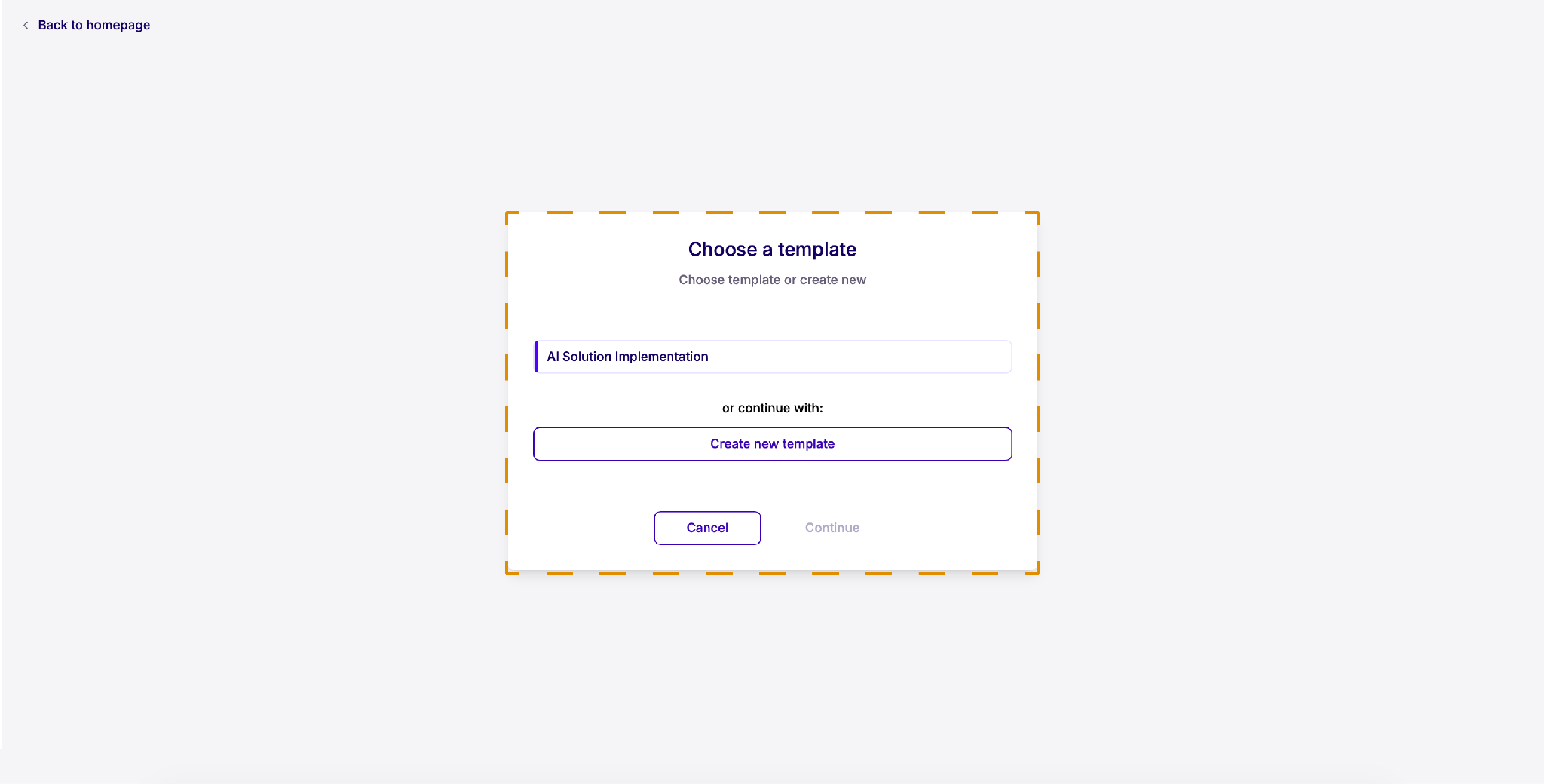
Choose or create a template
Pick a template for your project from the list. Your project will be set up with that template's datapoints, sheets, and document templates.
Don't see one that fits? Click “Create new template” to build your own.
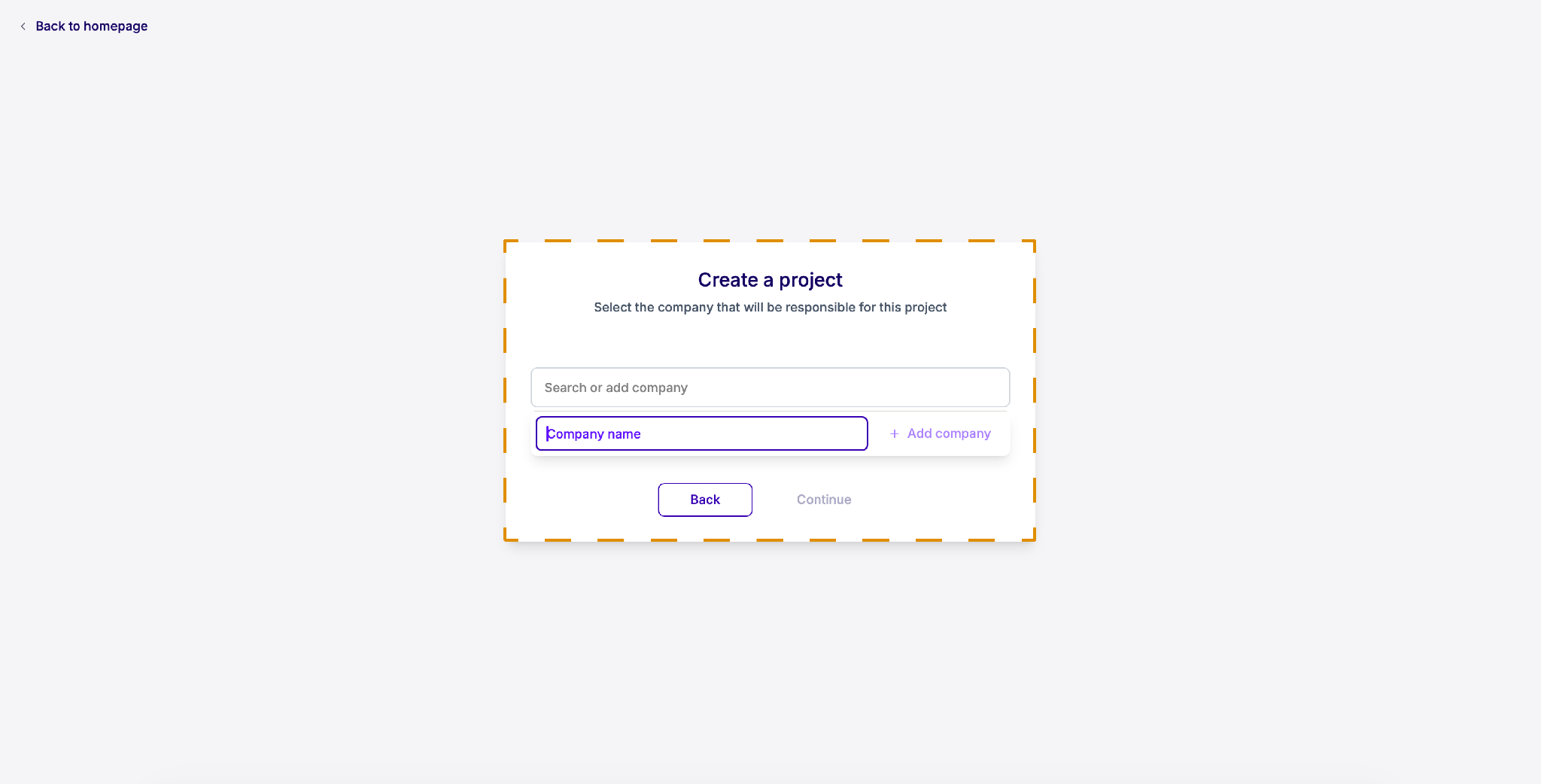
Select or add company

Choose the company responsible for this project. Start typing in the search field to find an existing company.
If it's not on the list yet, enter its name in the Company name field and click + Add company.
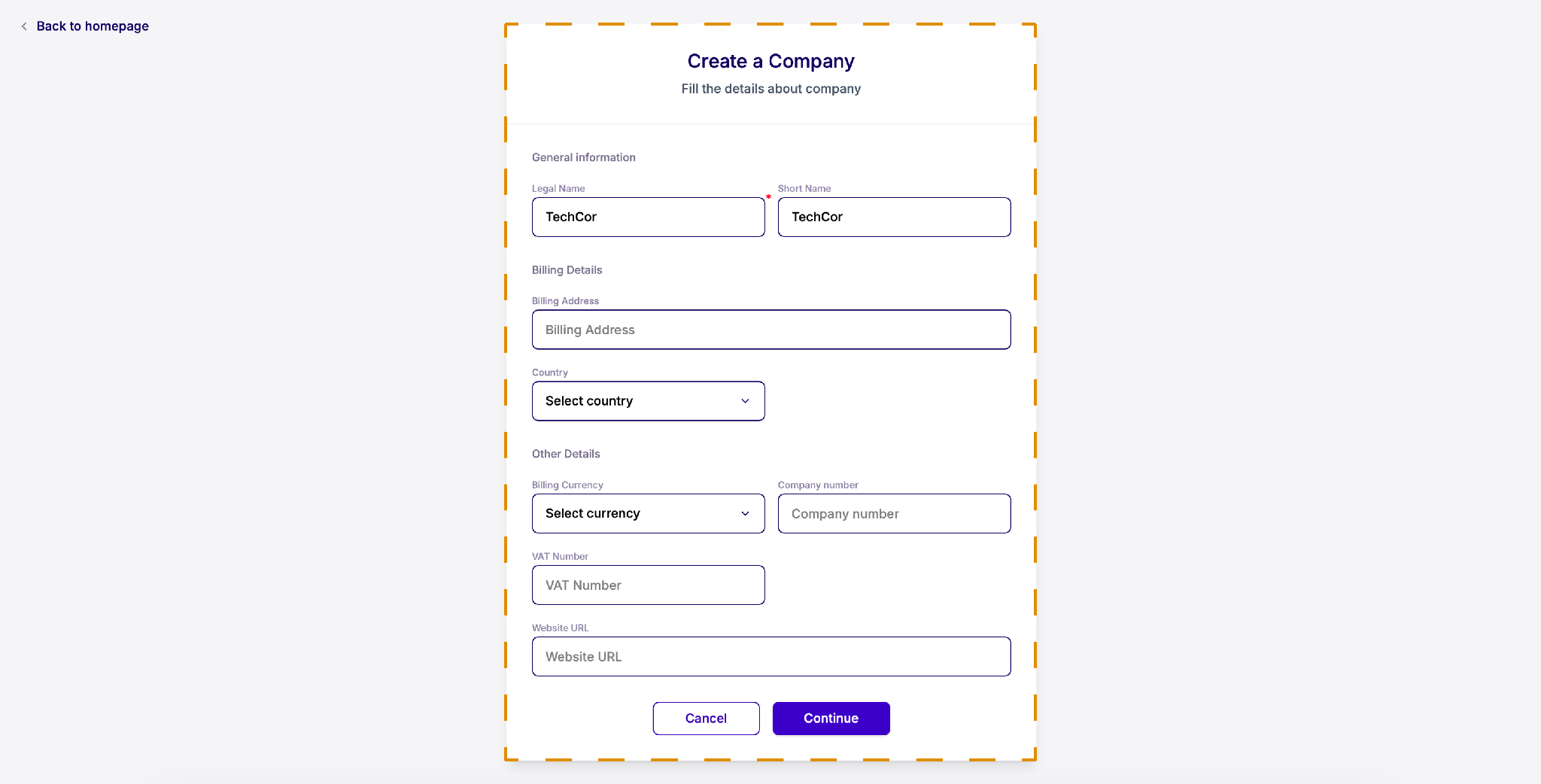
Add company details
Fill in the details for the new company. Enter its legal name and a short name, which is the name shown across Lumiare.
You can also add billing details (billing address and country) and other details: billing currency, company number, VAT number, and website. These are optional, so you can fill them in now or later.
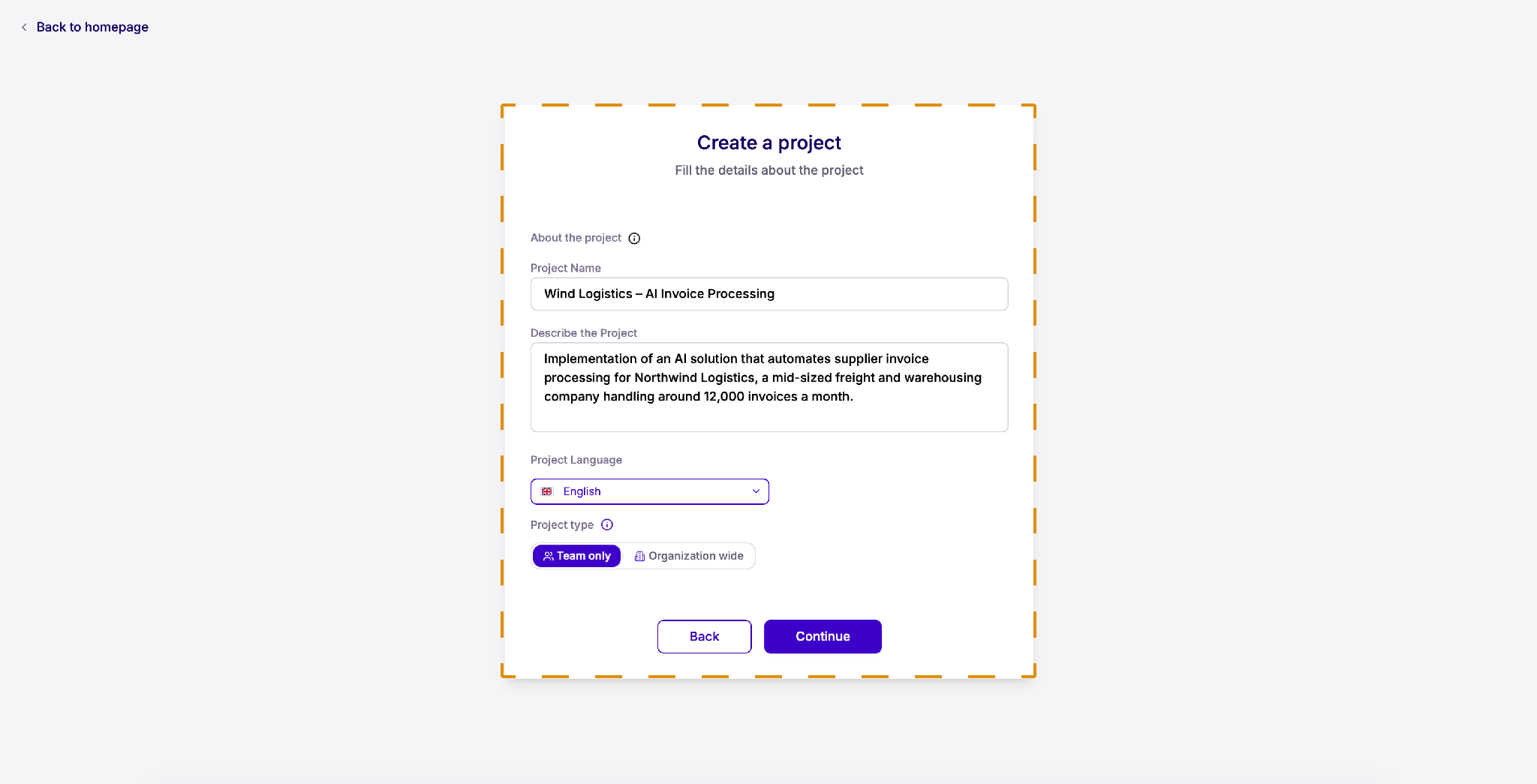
Add project details
Give your project a name and a short description of what it's about. A clear description helps the agent understand the project's context.
Choose the project language and the project type: Team only keeps the project limited to your team; Organization wide makes it available to everyone in your organization.
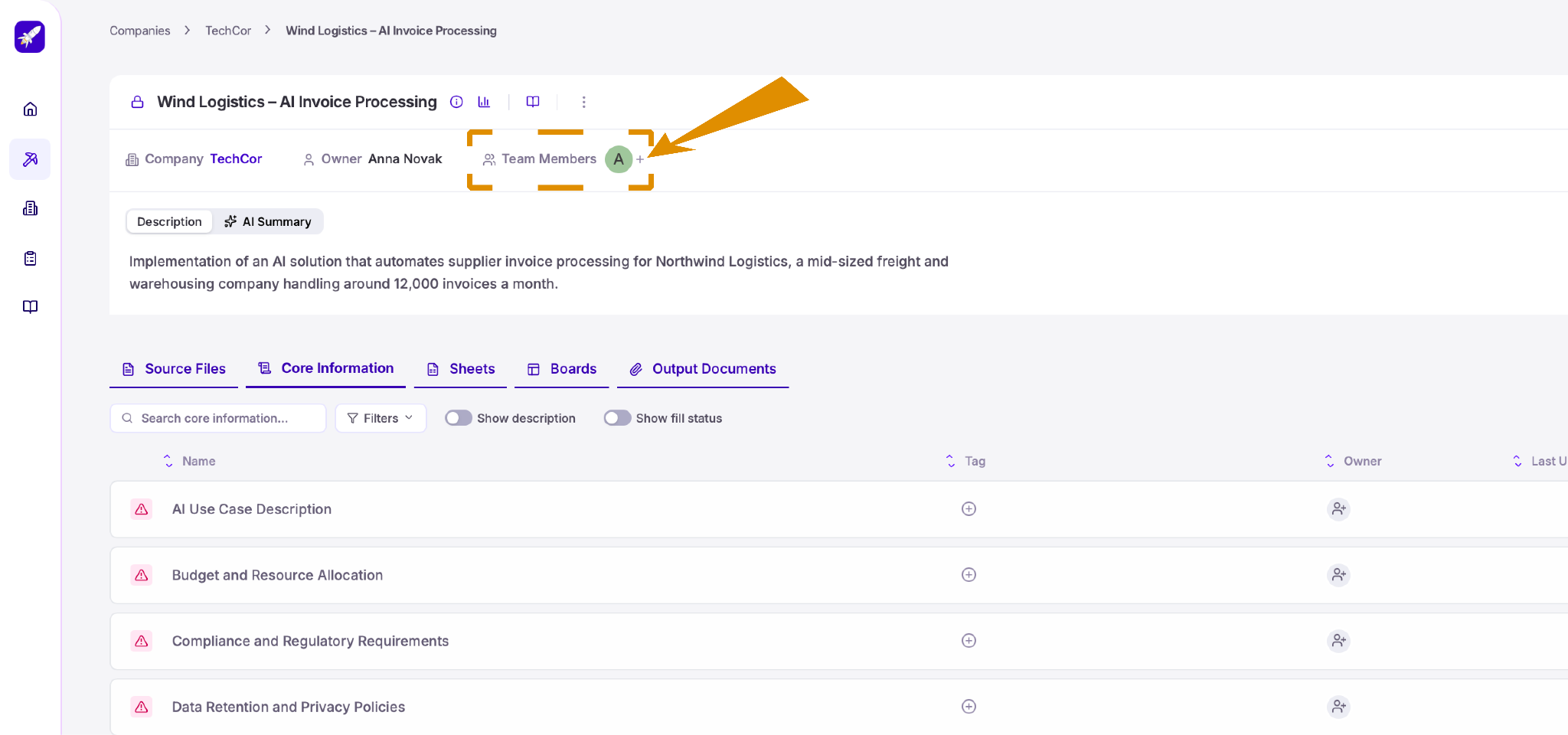
Your project workspace is ready!
Invite your team
Bring others into the project, click the + icon next to Team Members at the top of the project page and choose who you'd like to add.
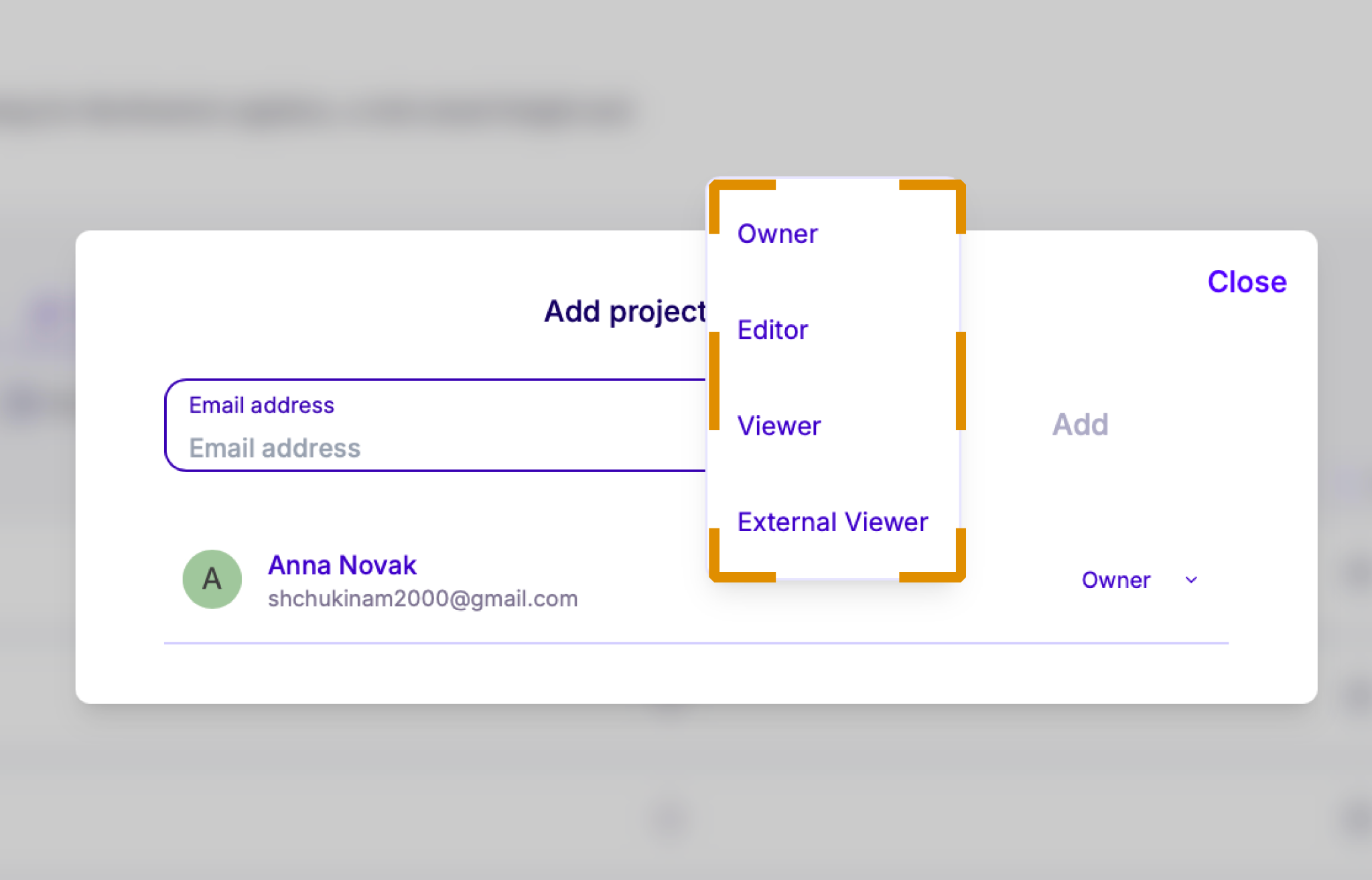
Enter your team members' email address, choose their role from the dropdown, and click Add. You can change a member's role at any time from the same list.
Owner: Full control over the project, including managing members and settings.
Editor: Can add and edit project content.
Viewer: Can view the project but not make changes.
External Viewer: Read-only access for people outside your organization, such as clients or partners.
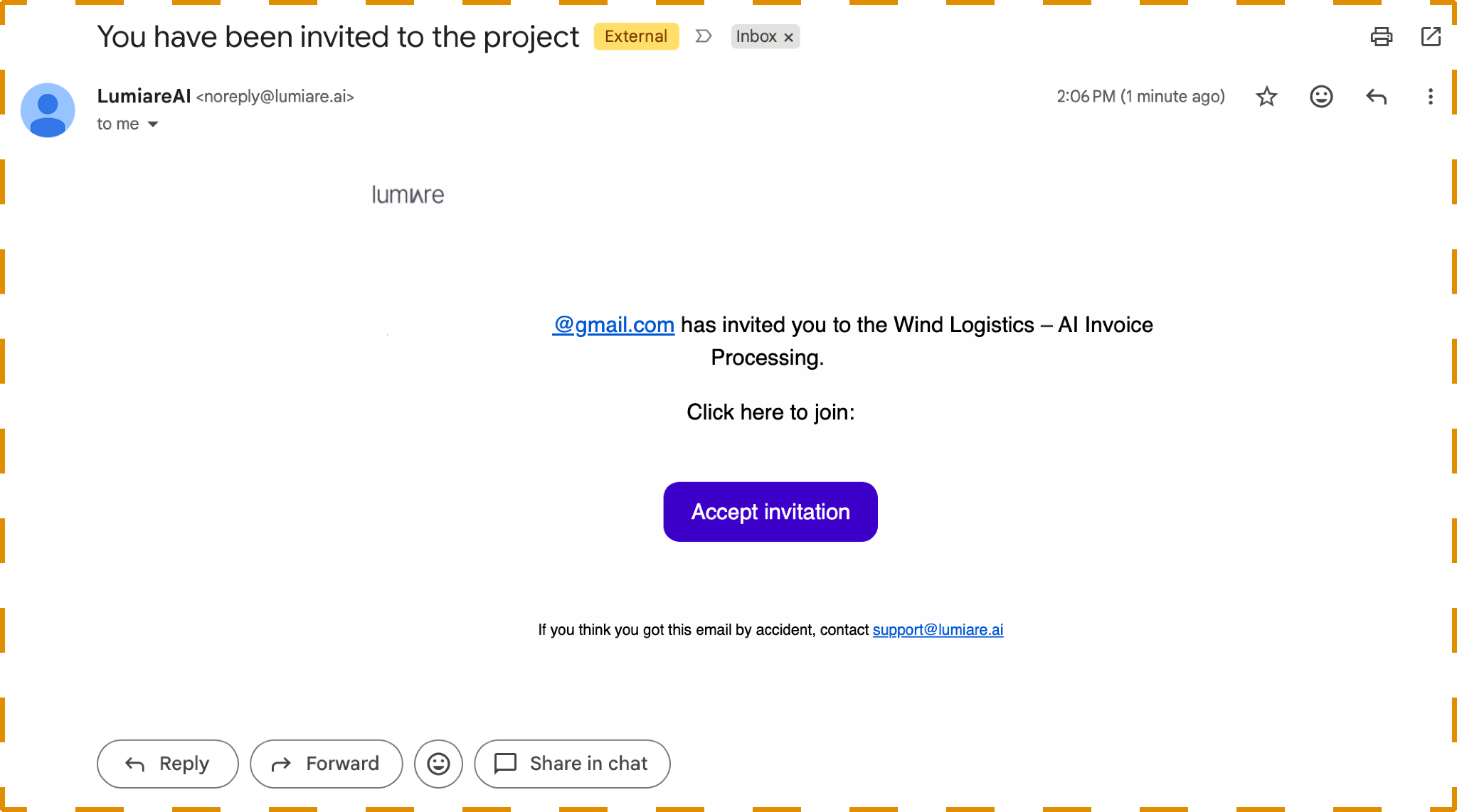
Accept the invitation
Each person you add receives an email invitation from Lumiare. To join the project, they just open the email and click Accept invitation.
If someone doesn't see the email, ask them to check their spam or promotions folder.