Contradictions

Every time new information enters your project, whether it's a file, a transcript, a voice memo, a note, or a manual edit, Lumiare compares it with what the project already contains. If the new information disagrees with something you've already saved, Lumiare flags it as a contradiction so you can decide which version is correct.
Review contradictions
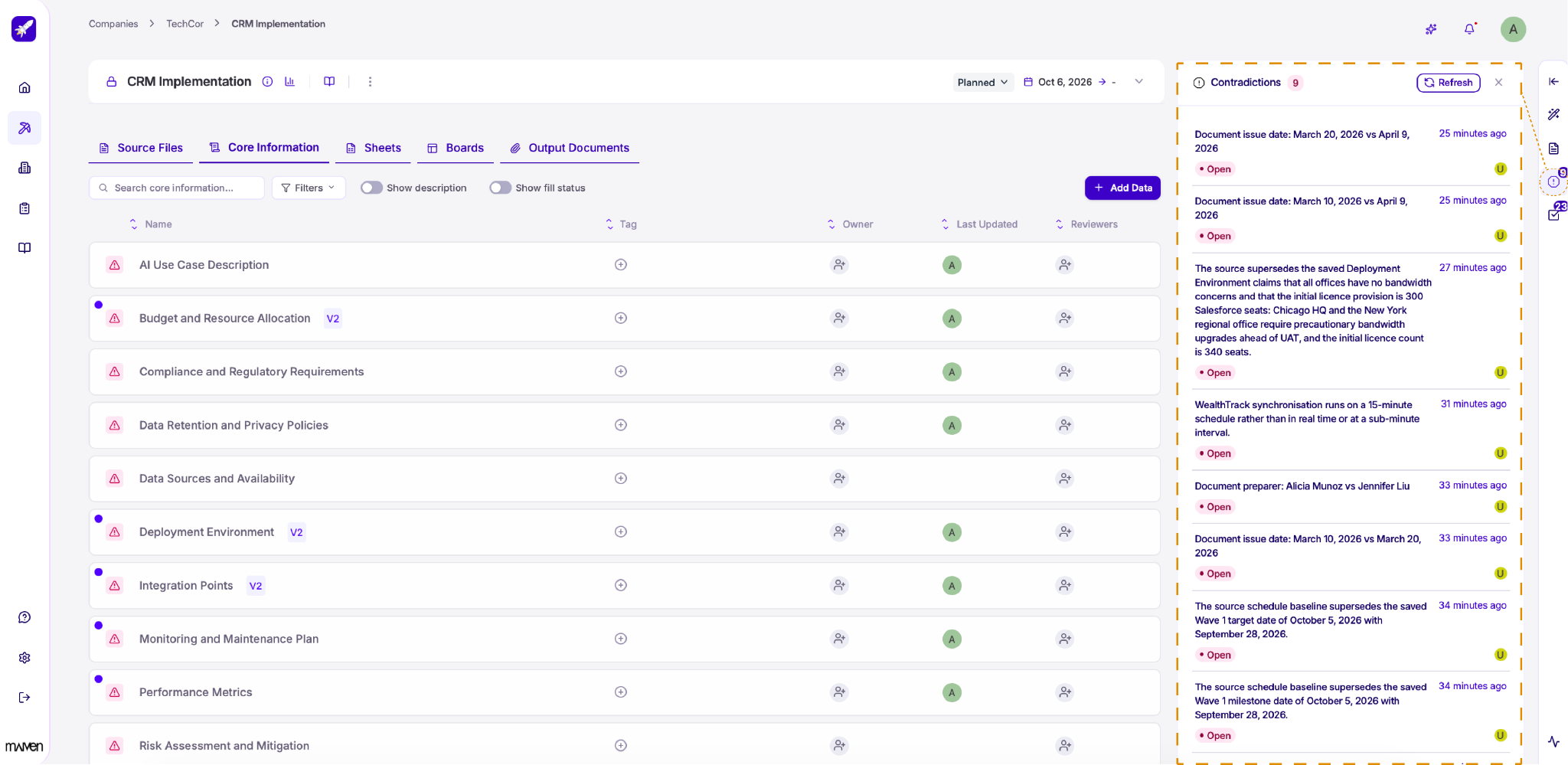
As you add more information to your project, sources sometimes disagree. Lumiare detects these conflicts automatically and lists them in the Contradictions panel. Open it from the exclamation mark icon in the right-hand toolbar. The number on the icon shows how many contradictions are still open.
Each contradiction describes what conflicts, for example two different dates or names for the same item, or a new source that overrides information you've already saved. You can also see when it was detected and its current status. Click a contradiction to review the details and decide which information is correct.
Click Refresh to check your project for new contradictions.
The V2 label next to a datapoint shows that its information has been updated, so you can easily spot which datapoints have changed since they were first created.
Resolve a contradiction
Click a contradiction to open its details.
-
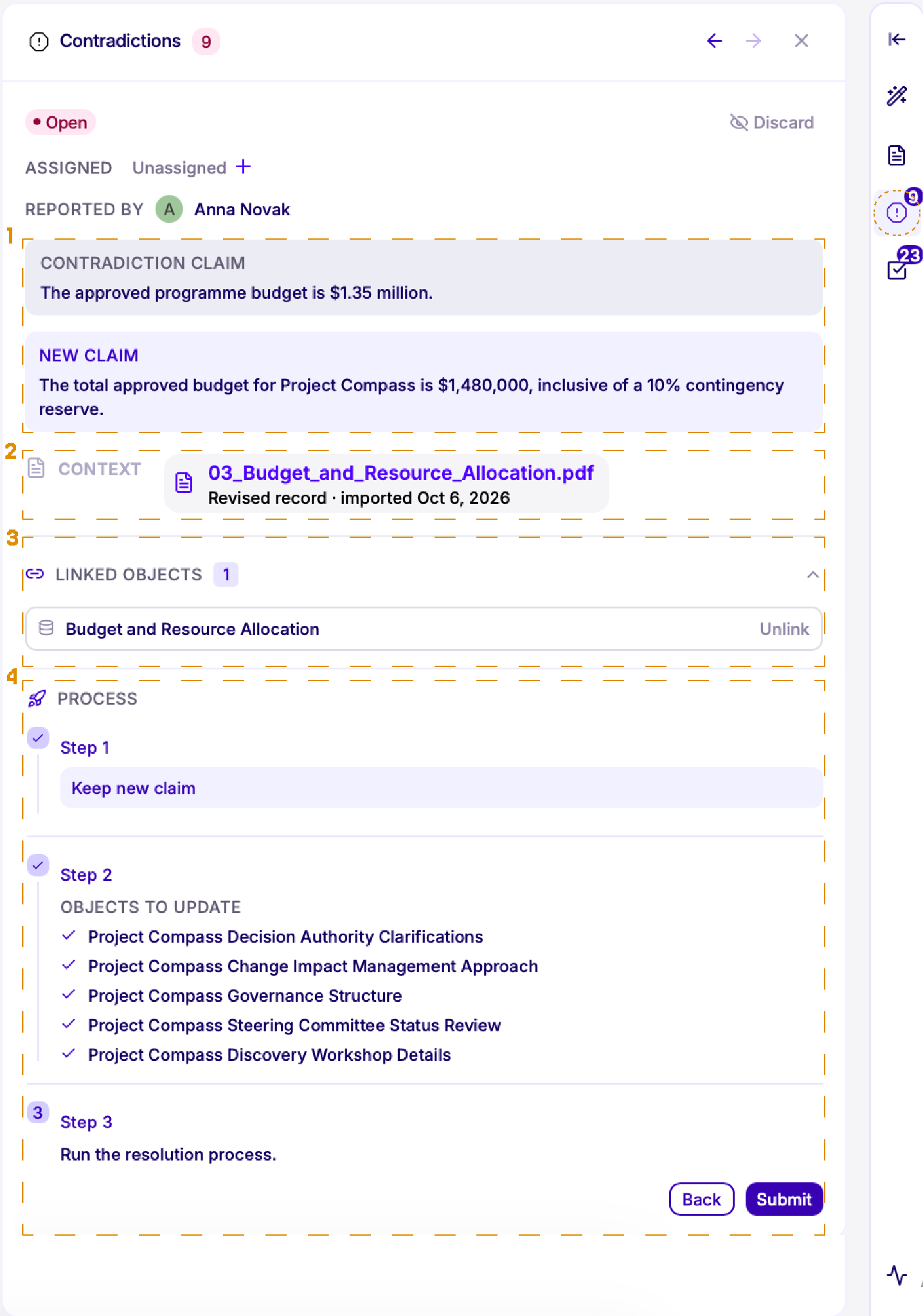
Claims: Compare the information already saved in your project (Contradiction claim) with the conflicting information from a new source (New claim).
-
Context: See the source file the new claim comes from. Click it to check the original document.
-
Linked objects: See which datapoints or sheet rows are affected by the contradiction. Click Unlink to remove a connection that isn't relevant.
-
Process: Resolve the contradiction in three steps. First, choose which claim to keep. Next, review the objects that will be updated with the correct information. Finally, click Submit to run the resolution and update your project.
You can also assign the contradiction to a team member by clicking + next to Unassigned, or click Discard if the contradiction isn't relevant.
Use the arrows at the top of the panel to move between contradictions.